
Managing Your Hedy Sessions
What is Session Management?
Session management in Hedy helps you organize your captured conversations and meetings. You can rename sessions, assign them to topics, search through content, and perform bulk operations to keep your workspace tidy and efficient.
Session List Overview
Your sessions appear in the Sessions tab, newest first by default. Each session displays:
-
Title: The session name (or “Untitled Session” if not renamed)
-
Date and Time: When the session was captured
-
Duration: Length in minutes
-
Topic Indicator: Colored dot showing assigned topic
-
Cloud Icon: Appears if the session is loaded from the cloud and wasn’t captured on the current device
Your current active session appears at the top with a special indicator.
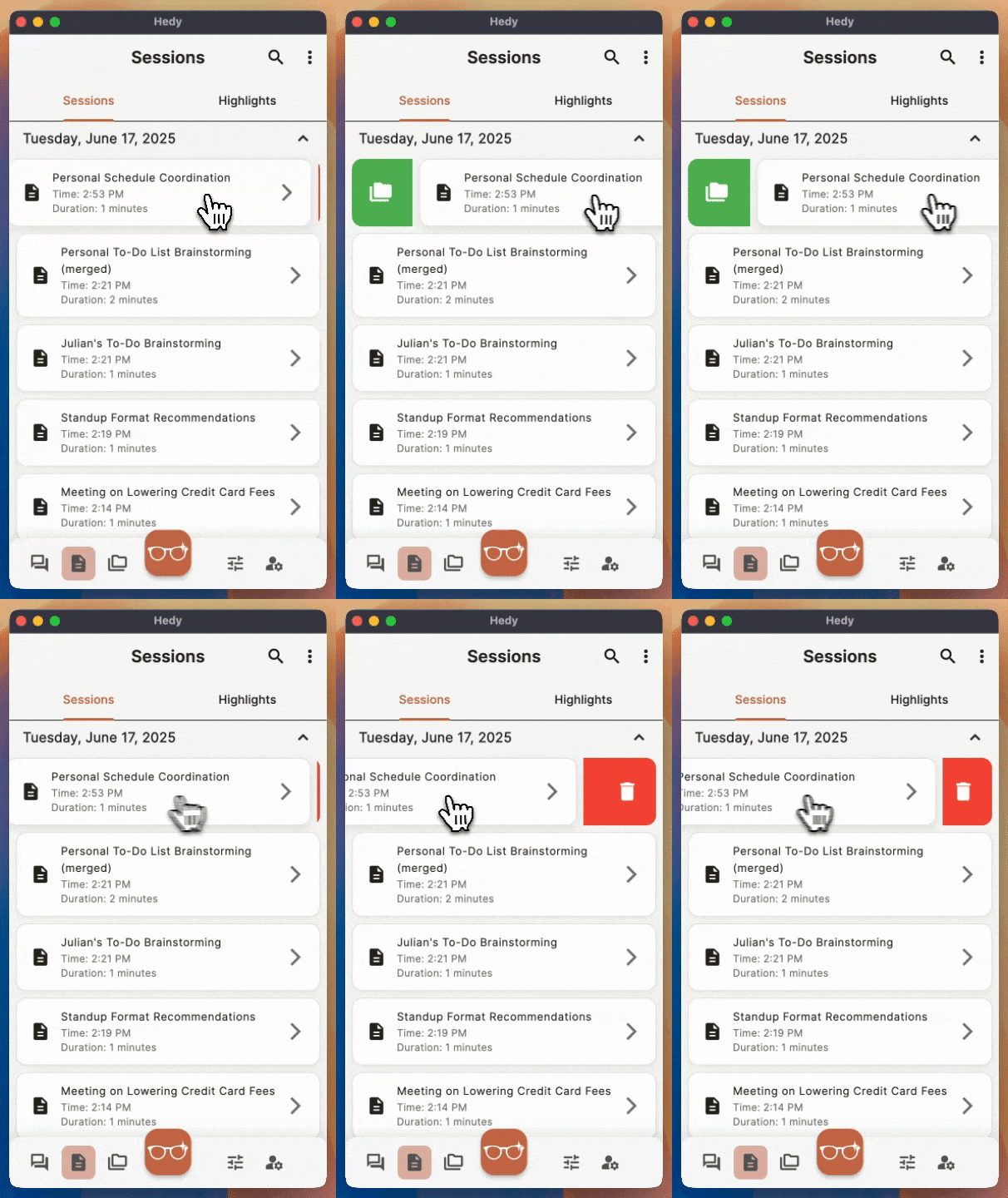
Quick Actions with Swipe Gestures
Hedy provides quick swipe actions for common tasks when you’re not in multi-select mode:
-
Swipe Right: Opens topic assignment dialog for the session
-
Swipe Left: Delete the session (shows confirmation first)
These gestures work consistently across iOS and Android devices, with haptic feedback for a smooth experience. Note: You cannot swipe the currently active session.
Renaming Sessions
Give your sessions meaningful names to find them easily later:
-
Tap on any session to open its details
-
Open the Settings tab. On desktop it sits at the right end of the tab row, after Transcript. On phones it’s the sliders icon at the right end of the row.
-
Edit the Session Title field at the top
-
Press Enter or tap outside the field to save
On phones and in narrow windows, tapping the title field opens a dialog where you type the new name and tap “Save”.
Note: Rename is not available on a session someone else shared with you. Sessions that live only in the cloud rename like any other.
Assigning Topics to Sessions
Topics group related sessions, such as every call with one client, so Hedy can draw on all of them together. A session belongs to one topic at a time, and topics sit side by side rather than inside one another.
Quick Assignment (Swipe)
-
Swipe right on any session in the list
-
Select a topic from the dialog that appears
-
Or tap “Create new topic” to make one
-
The session now shows a colored dot for the assigned topic
Assignment from Session Details
-
Tap a session to open its details
-
In the Details tab, use the topic dropdown
-
Select a topic or create a new one
Removing Topic Assignment
In either method above, select “No topic” to remove the topic assignment.
Multi-Select Mode
Manage multiple sessions at once using multi-select mode:
-
Tap the multi-select icon in the app bar to enter multi-select mode, or long-press a session
-
Tap sessions to select or deselect them
-
Use “Select All” button to choose all visible sessions
-
Selected sessions show with a checkmark
-
Tap the multi-select icon again to exit
Bulk Operations
When you’ve selected sessions in multi-select mode, a bottom action bar appears with three options:
-
Assign to Topic: Apply the same topic to all selected sessions
-
Remove Topic: Clear topic assignments from selected sessions
-
Delete: Remove multiple sessions at once (with confirmation)
All bulk operations show progress dialogs and clear selections when complete.
Searching Sessions
Find specific sessions quickly using search:
-
Tap the search icon in the app bar
-
Type keywords from your session content
-
Results filter in real-time as you type
-
Tap the X to clear the search
Filtering and Sorting Sessions
The Filters button (the sliders icon) at the top of your session list narrows the list down and sets its order:
-
Sort: Most Recent, Oldest, or Grouped by date. Grouped by date puts sessions under collapsible day headers, and tapping a header opens or closes that day
-
Topic: Any topic, or No topic for sessions that don’t have a topic yet
-
Duration: Any, Up to 30 min, 30 to 60 min, 1 to 2 hours, or 2+ hours
-
Date range: A start date, an end date, or both
-
Session type: Show only the session types you pick
The list updates as you change a filter. Filters work on the sessions already loaded on your device. If older sessions haven’t loaded yet, a Load more matches button at the end of the list fetches them.
The Topic filter can’t pick out one particular topic. To see the sessions of a single topic, open that topic from the Topics tab.
Hedy keeps your filters until you change them or sign out. Reset clears the filters and leaves the sort order as it is.
Keeping Work and Personal Sessions Apart
Hedy doesn’t have folders or subfolders. All of an account’s sessions share one list. To keep different parts of your life apart:
-
Use topics for the clients, projects, or areas you come back to. Open a topic from the Topics tab to see only its sessions
-
Use the filters above, for example by session type or date range
-
Use a separate Hedy account: Each account has its own sessions and topics. The app is signed into one account at a time, so moving between accounts means signing out and back in. Each device signs in on its own, so you can keep one device on each account.
Additional Session Options
Open a session’s details and tap the three-dot menu for:
-
Copy bookmark: Copy a link that opens this session in the Hedy web app, once the session has synced to the cloud. It is a bookmark for yourself: only people who already have access can open it, so sending it to someone else will not give them access
-
Invite: Give someone else access to the session. Choose an email invitation or an invite link (both need a Hedy account), or a public link that opens without one
-
Resend Recap Email: Send the summary again (Pro users only, and only when the session has a recap)
-
Export to Webhook: Send the session to a webhook you’ve set up
-
Share All Data: Share the session’s content
Renaming, editing the date and time, and deleting all live on the session’s Settings tab now. Delete is at the bottom of that tab, under “Danger Zone”.
For a session someone else shared with you, the menu only offers Share All Data.
Sharing Sessions
Use the share icon in session details to share content:
-
Share Transcript
-
Share Meeting Minutes
-
Share Conversations
-
Share Recap
For all sharing options, including topic sharing, see share sessions and topics.
Session Merging (Premium Feature)
Premium users can combine two related sessions into one. Access this feature from session details when available. Free tier users will see an upgrade prompt.
Tips for Effective Organization
-
Use consistent naming: Develop a naming convention like “[Type] - [Subject] - [Date]”
-
Create focused topics: Make topics for projects, clients, or meeting types
-
Regular cleanup: Use bulk delete to remove old sessions efficiently
-
Leverage search: Don’t worry about perfect organization - search finds content quickly
-
Watch for sync status: Cloud icon indicates sessions backed up to cloud
Troubleshooting
Sessions not appearing in the list
-
Pull down to refresh the session list
-
Check whether a filter is active. Filters stay on until you reset them, so open Filters and tap Reset. While a filter is on, older sessions may need Load more matches at the end of the list
-
If the sort is set to Grouped by date or Oldest, switch it back to Most Recent
-
Ensure the session completed successfully
-
Exit and re-enter the Sessions tab
Can’t swipe to delete or assign topics
-
Exit multi-select mode - swipe gestures are disabled in multi-select
-
Ensure you’re not trying to swipe the currently active session
-
Try a slower, horizontal swipe gesture
Can’t find rename, or can’t edit a session
-
Rename, date, and time live on the session’s Settings tab, not in the three-dot menu
-
On phones the Settings tab is the sliders icon at the right end of the tab row
-
Sessions someone else shared with you are read-only, so those fields are unavailable
Pro tip: Use multi-select mode with “Select All” to quickly assign topics to multiple sessions after a busy day of meetings. It’s much faster than handling sessions one by one!