Editing Transcripts & Regenerating Content
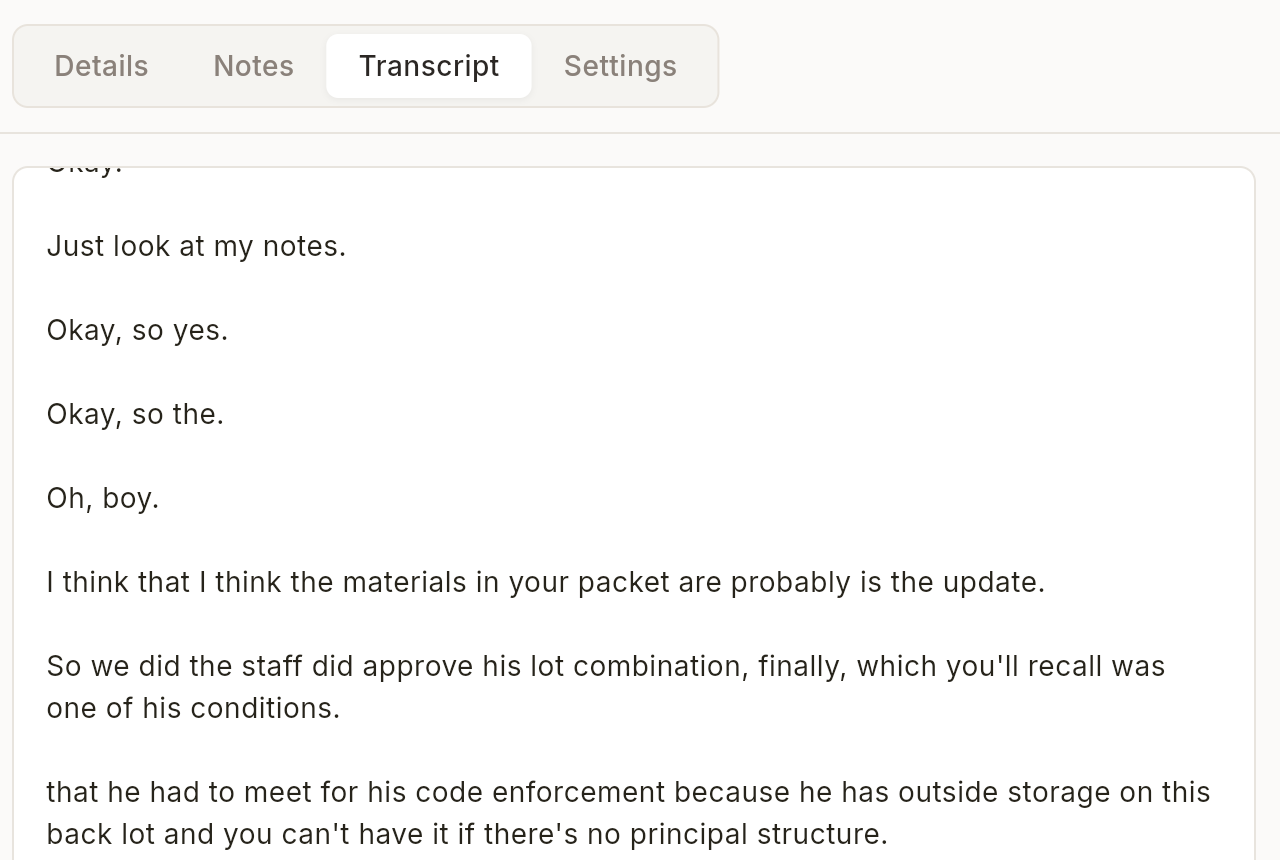
Take full control of your meeting content by editing transcripts, summaries, and notes, then regenerate AI insights based on your changes.
What is Transcript Editing?
Hedy allows you to edit any part of your meeting content - from raw transcripts to AI-generated summaries and detailed notes. After making edits, Pro users can regenerate the AI-powered insights to reflect your changes. This is perfect for correcting transcription errors, adding missed information, or removing sensitive content before sharing.
Editing Your Transcript
-
Open any completed session in the Hedy app
-
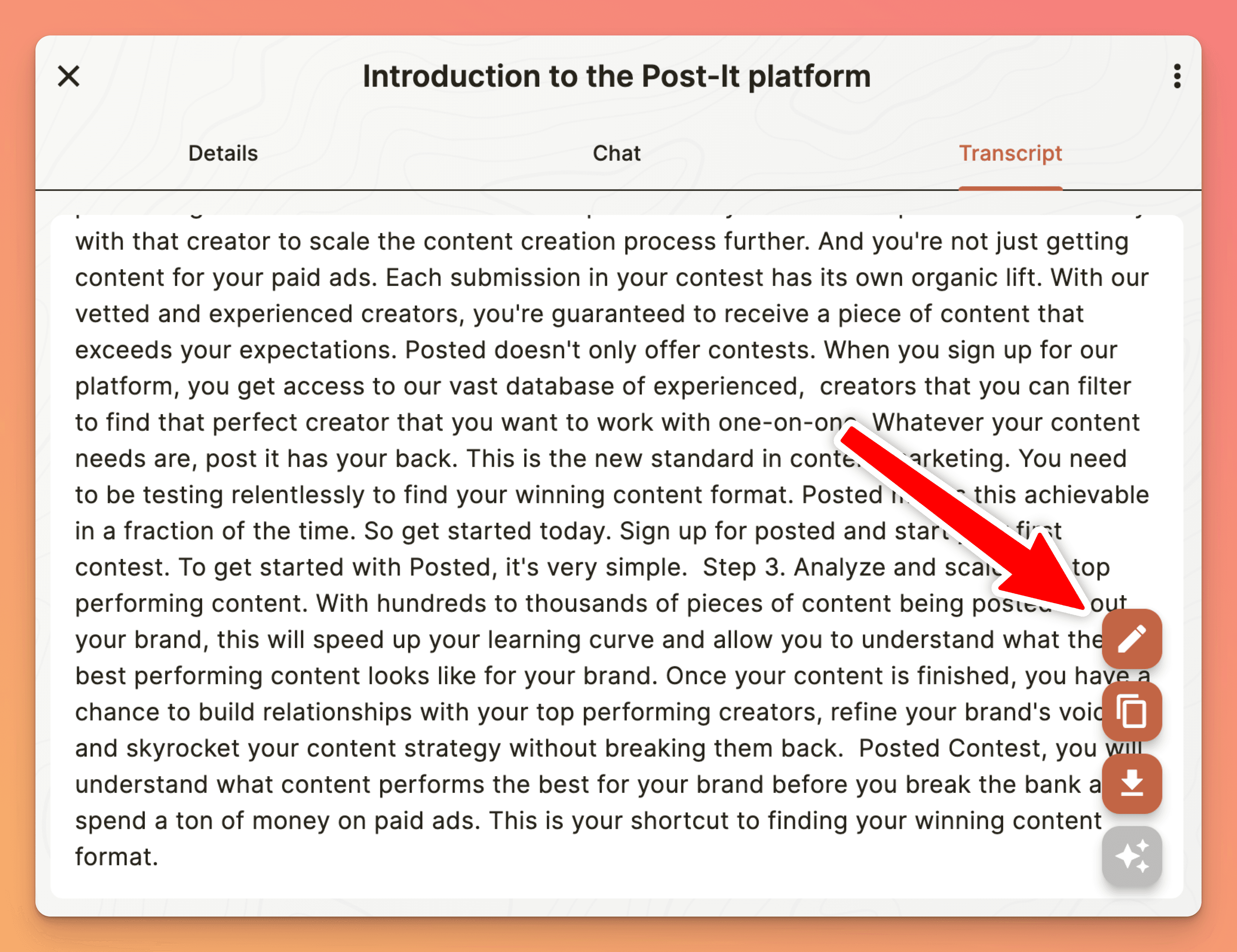
Navigate to the “Transcript” tab
-
Look for the pencil icon (“Edit Transcript”) next to the transcript
-
Tap to open the transcript editor
-
Make your changes in the editor
-
On sessions without speaker labels, use the search feature (magnifying glass) to find specific text
-
Tap “Save” in the top right when finished
Sessions With Speaker Labels
On sessions with speaker labels and timestamps (Nemotron sessions, and Whisper sessions that separated voices), the pencil opens a turn-by-turn editor instead of one text box. You edit the words of each speaker turn in place. To remove turns, select them with their checkboxes, Shift-click to select a range, or long-press on a touch screen, then tap Delete. Each turn’s ⋯ menu also offers Select this and all turns below and Select this and all turns above. You can undo the last deletion, and once you have deleted turns, Session Details offers to regenerate your notes. This editor has no search. Sessions without speaker labels keep the single text box.
You can’t move a turn to a different speaker. Speaker labels and timestamps stay fixed in the turn editor, and Hedy has no way to reassign a single turn or section. If a section is attributed to the wrong person, see speaker names in your transcript. If that whole speaker is really someone else, merge their chip into the right person. Otherwise, run Clean Transcript on the device that captured the session. It writes a separate cleaned copy with re-sorted speaker labels and leaves the original alone. It’s AI-generated, so it won’t always get every label right.
Editing Summaries & Notes
-
Open your session and scroll to the Summary or Detailed Notes section
-
Tap the pencil icon (“Edit Summary” or “Edit Notes”) in the section header
-
Make your changes in the editor
-
Tap “Save” to apply your edits
Regenerating AI Content
After editing your transcript, Pro users can regenerate AI insights to match the updated content:
-
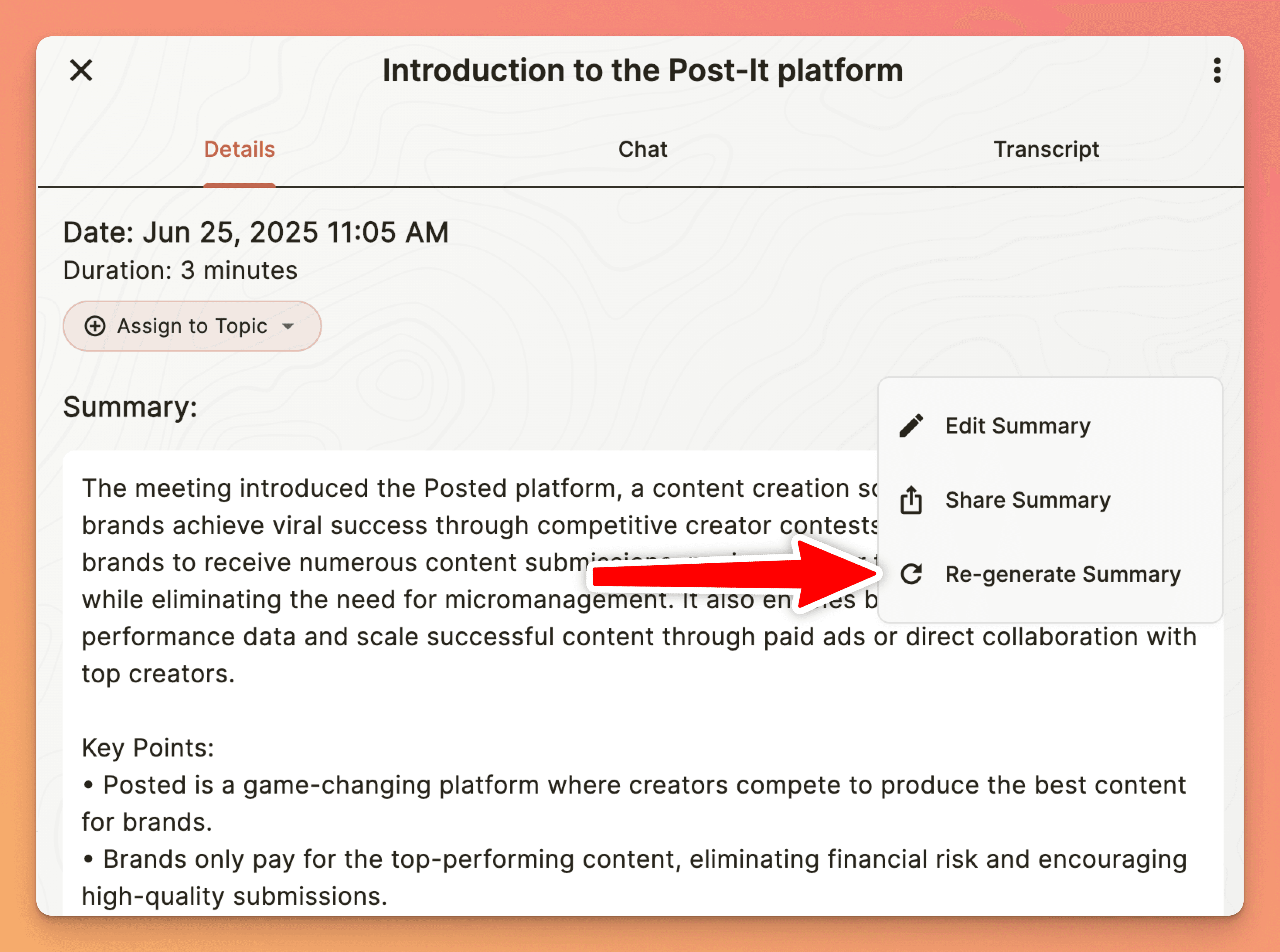
Regenerate Summary: Tap the circular-arrow icon (“Re-generate Summary”) in the Summary header
-
Regenerate Notes: Tap the circular-arrow icon (“Re-generate Detailed Notes”) in the Detailed Notes header
-
Regenerate To-Dos: Look for the refresh icon next to “Your To-Dos” header
Edits Sync Across Your Devices
Transcript edits you make on one device (iPhone, iPad, Mac, or Windows) now sync reliably to your other devices within a few seconds. You can start an edit on your Mac and continue it on your phone without losing changes.
How Regeneration Works
When you regenerate content, Hedy’s AI analyzes your edited transcript from scratch:
-
Fresh Analysis: AI processes the updated transcript without bias from previous versions
-
Context Awareness: Your meeting type and context settings guide the AI’s focus
-
Immediate Updates: New insights appear as soon as processing completes
-
Original Preserved: Your edited transcript remains the source of truth
Best Practices
-
Edit the transcript first, then regenerate summaries for consistency
-
Use search to quickly find and correct recurring transcription errors
-
To find a word without editing, use Find in transcript (the magnifier next to the transcript) on the session’s transcript
-
In a long transcript, use the buttons in the editor to jump to the top or the bottom
-
Add names and terms Hedy keeps getting wrong to your custom vocabulary so future transcripts come out right
-
If transcripts are consistently inaccurate, see fix poor transcription quality for audio and settings tips
-
Review regenerated content to ensure it captures your key edits
Important Limitations
-
Active Sessions: Cannot edit while a session is in progress or still processing after you stop it
-
Cleaned View: Switch to raw transcript view to enable editing
-
Cloud Sessions: Cannot regenerate AI content for cloud-origin sessions
-
Free Tier: Regeneration requires Pro subscription (editing is available to all)
-
Missing parts of the transcript: Regenerating doesn’t transcribe the audio again. If part of the conversation is missing and the session’s audio was saved, import that audio into a new session for a complete transcript (see Part of the Conversation Is Missing)
Troubleshooting
I can’t find the edit button
-
Ensure the session is completed (not currently active)
-
Switch from “Cleaned” to “Transcript” view if applicable
-
Check that you’re viewing a local session, not a shared one
Regenerate option is grayed out
-
Regeneration requires a Pro subscription - upgrade to access
-
Cannot regenerate cloud-origin or shared sessions
-
Wait for any background processing to complete
My edits aren’t saving
-
Ensure you tap the “Save” button before leaving the editor
-
Check for sufficient storage space on your device
-
Try editing a shorter section to isolate the issue
Pro tip: When editing long transcripts without speaker labels, use the search feature to jump between speakers by searching for their names. This makes it easy to review and correct specific participants’ contributions without scrolling through the entire document.
Renaming a speaker is not a text edit. If a participant is labelled “Speaker 2” and you want their real name throughout, do not edit the transcript text. Tap their chip in the speaker row above the transcript instead. That renames them everywhere at once and carries the name into exports and your other devices. The speaker row appears on Nemotron sessions and on Whisper sessions that separated voices. Cloud speech providers still have no speaker turns. Clean Transcript is a separate text pass and can also write names into the cleaned copy. See speaker names in your transcript.