
Webhooks
What Are Webhooks?
Webhooks let Hedy send data to other apps and services in real time. When an event occurs — like a session ending or a highlight being created — Hedy sends the data to a URL you specify. This lets you build powerful automations without any coding.
For example, you could automatically:
-
Save meeting transcripts to Google Docs or Notion
-
Post session recaps to a Slack channel
-
Create tasks in Asana or Todoist from action items
-
Log session data to a spreadsheet
Webhooks push data out when events happen. If you want an AI assistant to pull your session data on demand instead, see connecting Hedy with AI assistants using MCP.
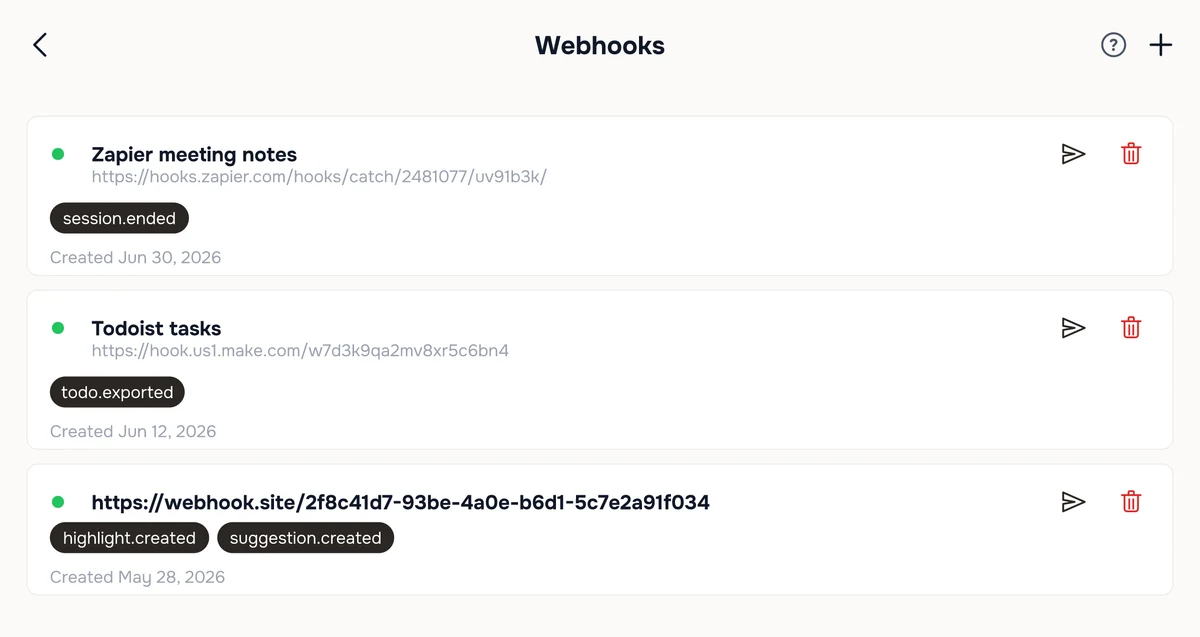
Webhooks you’ve set up live under Settings > Automation & Data > API Access > Manage Webhooks. Each one shows the events it’s subscribed to and when you created it:
Requirements
-
Hedy Pro subscription — Webhooks are a Pro feature
-
Cloud Sync enabled — Required so Hedy can process webhook events through the cloud
You can view your webhooks without Cloud Sync, but you need it enabled to create, edit, or trigger them.
Setting Up a Webhook
-
Open Hedy and go to Settings
-
Scroll down to the API Access section
-
Tap Manage Webhooks
-
Tap the + button to add a new webhook
-
Enter a name (optional) — a label to help you remember what this webhook is for (e.g., “Zapier meeting notes”)
-
Paste the webhook URL from your external service — this must be an HTTPS URL
-
Select the events you want to subscribe to (see below)
-
Tap Create
-
Hedy displays the signing secret immediately after creation. This is the only time it’s shown — copy and store it somewhere safe before closing the dialog.
You can create up to 10 webhooks.
Editing a Webhook
Tap any webhook in the list to reopen the same form. You can rename it, point it at a different URL, or change which events it fires on, then tap Save.
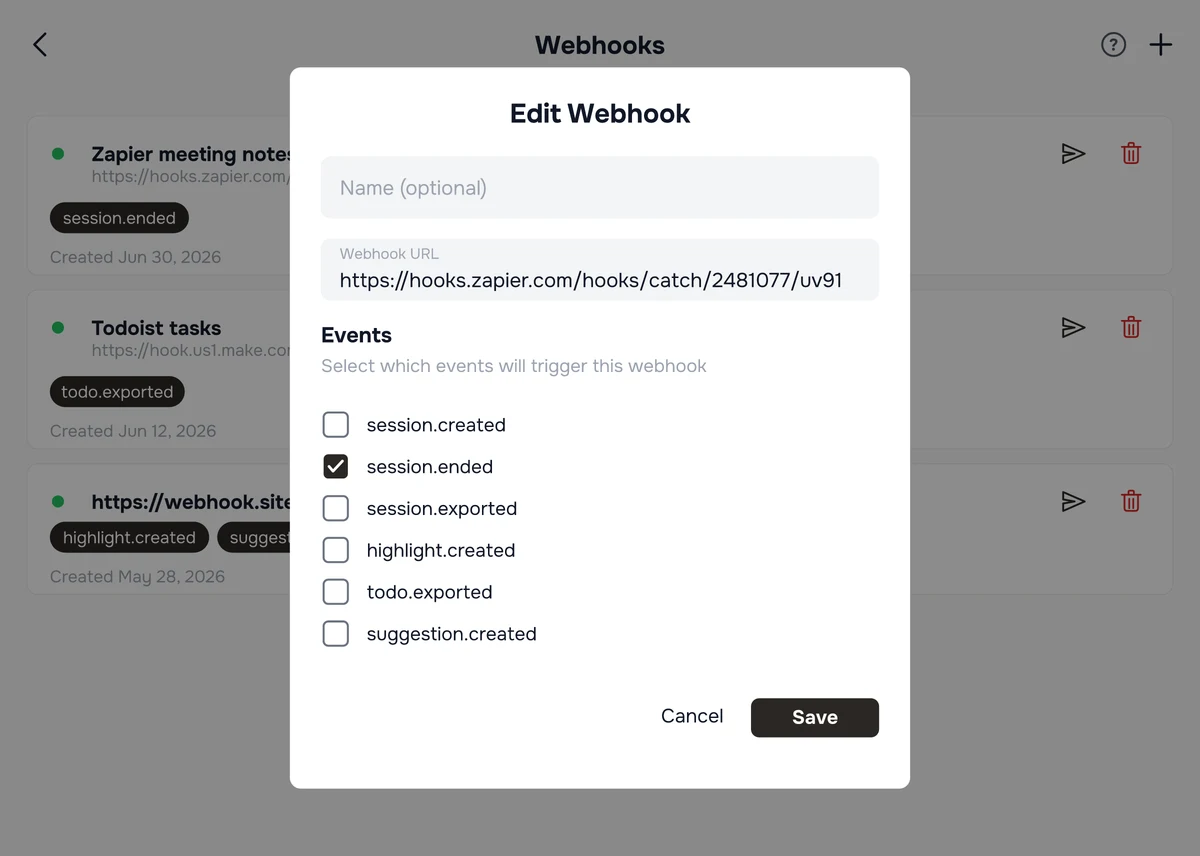
Editing a webhook doesn’t change its signing secret. Hedy issues that once, when you first create the webhook.
Available Events
Choose which events trigger your webhook:
Session Created — Fires when you start a new session. Sends the session title and start time.
Session Ended — Fires when a session finishes. Sends the full session data including transcript, recap, meeting minutes, highlights, your session notes, and topic information. This is the most comprehensive event.
Session Exported — Fires when you manually export a session to your webhooks. Sends similar data to Session Ended (transcript, recap, highlights, session notes, etc.).
Highlight Created — Fires each time a highlight is captured during a session. Sends the highlight text, AI insight, and timestamp.
Suggestion Created — Fires each time Hedy shows an automatic suggestion during a live session. Sends the suggestion text, the session it belongs to, and the session type. Hedy can surface several suggestions in a single session, so expect this event to fire more often than the others.
Todo Exported — Fires when you export an action item. Sends the todo text, due date, and associated session.
Exporting a Session Manually
In addition to automatic events, you can manually send any session to your webhooks:
-
Open a completed session
-
Tap Export to Webhook
-
If you have multiple webhooks subscribed to the Session Exported event, select which ones to send to
-
Confirm the export
Testing Your Webhook
Before relying on a webhook, you can verify it works:
-
Go to Settings > Automation & Data > API Access > Manage Webhooks
-
Tap the test button on any webhook
-
Hedy sends a test payload to your URL and shows whether it succeeded, along with the response status code
If the test fails, double-check that the URL is correct and that your external service is ready to receive requests.
Inspecting the Payload with webhook.site
If you want to see exactly what Hedy sends — every header, the full JSON body, the signature — before wiring up Zapier, Make, or your own server, webhook.site is the fastest way:
-
Open webhook.site — a unique URL is generated instantly, no signup required
-
Copy the URL and paste it into your Hedy webhook
-
Tap test in Hedy (or trigger a real event)
-
Switch back to webhook.site — every request appears in real time, with full headers, query string, and body
Use this to discover the exact field names and structure of Hedy’s payloads, then build your real automation against that shape. The free tier accepts up to 100 requests per URL, which is more than enough for debugging.
What Data Is Sent?
Every webhook request is an HTTP POST with a JSON body. The data depends on the event type, but a Session Ended event includes:
-
Session details — Title, start time, end time, duration
-
Transcript — The full text of your session
-
Conversations — Structured speaker-by-speaker dialogue
-
Meeting minutes — Key discussion points
-
Recap — AI-generated summary
-
Highlights — Each highlight with its AI insight, quote, and timestamp
-
Session notes — Your own notes for the session, in the
session_notesfield (rich-text JSON; an empty string when you haven’t written any). Sent on session.ended and session.exported by Hedy 3.4 and later -
Topic — The topic name and insights, if the session is assigned to a topic
Note on session notes: Notes you type in the post-session screen within a few seconds of ending may not make it into the first session.ended delivery, because Hedy is still saving them. Those notes are always included in session.exported and in the API, so re-export the session if you need them.
A suggestion.created event is much smaller. Instead of the full session, it sends just the suggestion text, an identifier for the suggestion, the session it belongs to, the session type, and a timestamp. The session may still be in progress when it arrives, so use session.ended if you need the complete transcript and recap.
Security & Verification
Every webhook request includes a signature so you can verify it genuinely came from Hedy:
-
X-Hedy-Signature header — A raw, hex-encoded HMAC-SHA256 hash of the request body, signed with your webhook’s unique secret (no
sha256=prefix). The secret is displayed once, when you create the webhook. -
X-Hedy-Event header — The event type (e.g., session.ended)
All webhook URLs must use HTTPS to ensure your data is encrypted in transit. Hedy will not send data to HTTP endpoints.
Verifying the Signature
If you’re building your own endpoint, verify every request before trusting it. Compute HMAC-SHA256 of the raw request body with your signing secret and compare it to the X-Hedy-Signature header using a constant-time comparison (a regular == is vulnerable to timing attacks).
Node.js:
const crypto = require('crypto');

function verifyHedy(rawBody, signature, secret) {
  const expected = crypto.createHmac('sha256', secret).update(rawBody).digest('hex');
  const a = Buffer.from(expected, 'hex');
  const b = Buffer.from(signature, 'hex');
  return a.length === b.length && crypto.timingSafeEqual(a, b);
}
Python:
import hmac, hashlib

def verify_hedy(raw_body: bytes, signature: str, secret: str) -> bool:
    expected = hmac.new(secret.encode(), raw_body, hashlib.sha256).hexdigest()
    return hmac.compare_digest(expected, signature)
Important: Use the raw request body bytes, exactly as received. Re-serializing parsed JSON will change whitespace or key order and the signature will not match.
Using Webhooks with Popular Platforms
Zapier — Create a Zap with “Webhooks by Zapier” as the trigger. Choose “Catch Hook,” copy the webhook URL, and paste it into Hedy.
Make (formerly Integromat) — Add a “Custom Webhook” module as your scenario trigger. Copy the generated URL and paste it into Hedy. Or use the Hedy app for Make: its “Watch events” trigger registers the webhook for you, so there is no URL to copy.
n8n — Add a “Webhook” trigger node to your workflow. Copy the production URL and paste it into Hedy.
Delivery & Retries
Hedy automatically retries failed deliveries:
-
Server errors (5xx) — Retried up to 2 times with increasing delays
-
Rate limited (429) — Retried once, respecting the service’s retry timing
-
Client errors (4xx) — Not retried, as these typically indicate a configuration issue
What your endpoint should return: Respond with any 2xx status (200 OK is fine) within 30 seconds. The response body is ignored. If you have heavy work to do — saving to a database, calling another API, generating a document — return 200 immediately and process the payload asynchronously, otherwise Hedy will time out and mark the delivery as failed.
Troubleshooting
Hedy-side issues
“Webhooks require Pro” message — Upgrade to Hedy Pro in Settings > Account > Your plan to access webhooks.
“Cloud Sync required” message — Enable Cloud Sync in Settings > Privacy & System > Privacy Preferences > Cloud Sync, or tap the Enable button on the warning banner shown at the top of the Webhooks screen.
Not receiving events — Check that Cloud Sync is enabled, the webhook is subscribed to the correct event, and that your Pro subscription is active.
Delivery issues
When the test fails or events aren’t arriving, the fastest way to isolate the problem is to point the webhook at webhook.site and re-test. If the request shows up there, Hedy is sending correctly and the issue is on the receiving side.
Test fails with a timeout — Your endpoint must respond within 30 seconds. If you’re doing heavy work (saving to a database, calling another API, generating PDFs) before responding, return 200 OK immediately and process the payload asynchronously.
SSL or certificate error — Your endpoint’s HTTPS certificate is expired, self-signed, or missing intermediate certificates. Test with SSL Labs and renew or fix the chain.
Connection refused or 404 — The URL is wrong, the path doesn’t exist, or the server isn’t running. Confirm the exact URL by triggering a test against webhook.site first, then comparing.
Zap or Make scenario “404 not found” — The workflow is paused, in draft mode, or pointing at a test URL instead of the production URL. In Zapier, the Zap must be turned On. In Make, the scenario must be Active. In n8n, use the Production URL, not the Test URL.
Requests are being silently dropped — A firewall, WAF, or security plugin (Wordfence, Sucuri, Cloudflare’s bot protection) is blocking incoming POSTs. Check your server’s access logs — if Hedy’s request never appears, allowlist Hedy or the User-Agent it sends.
Signature doesn’t match — You’re verifying against parsed/re-serialized JSON instead of the raw request body bytes, or you’ve prefixed the comparison with sha256= (Hedy doesn’t include that prefix). See “Verifying the Signature” above.
Pro tip: Start by subscribing to the Session Ended event — it includes the most comprehensive data and is the most useful for building automations around your meeting notes.