Organize Sessions with Hedy Topics
Topics function as intelligent containers for related sessions, helping you organize your Hedy experience by grouping conversations that share a common theme, project, or purpose.
When you add sessions to a topic, Hedy can draw connections between these related conversations, providing more contextual insights and remembering important details across all sessions in that topic when the topic is set to Build on each other (the default).
Every plan includes Topics. Free accounts can create one topic and use all of its features; Pro accounts get unlimited topics plus chat that reaches across all of them.
Example topic structure:
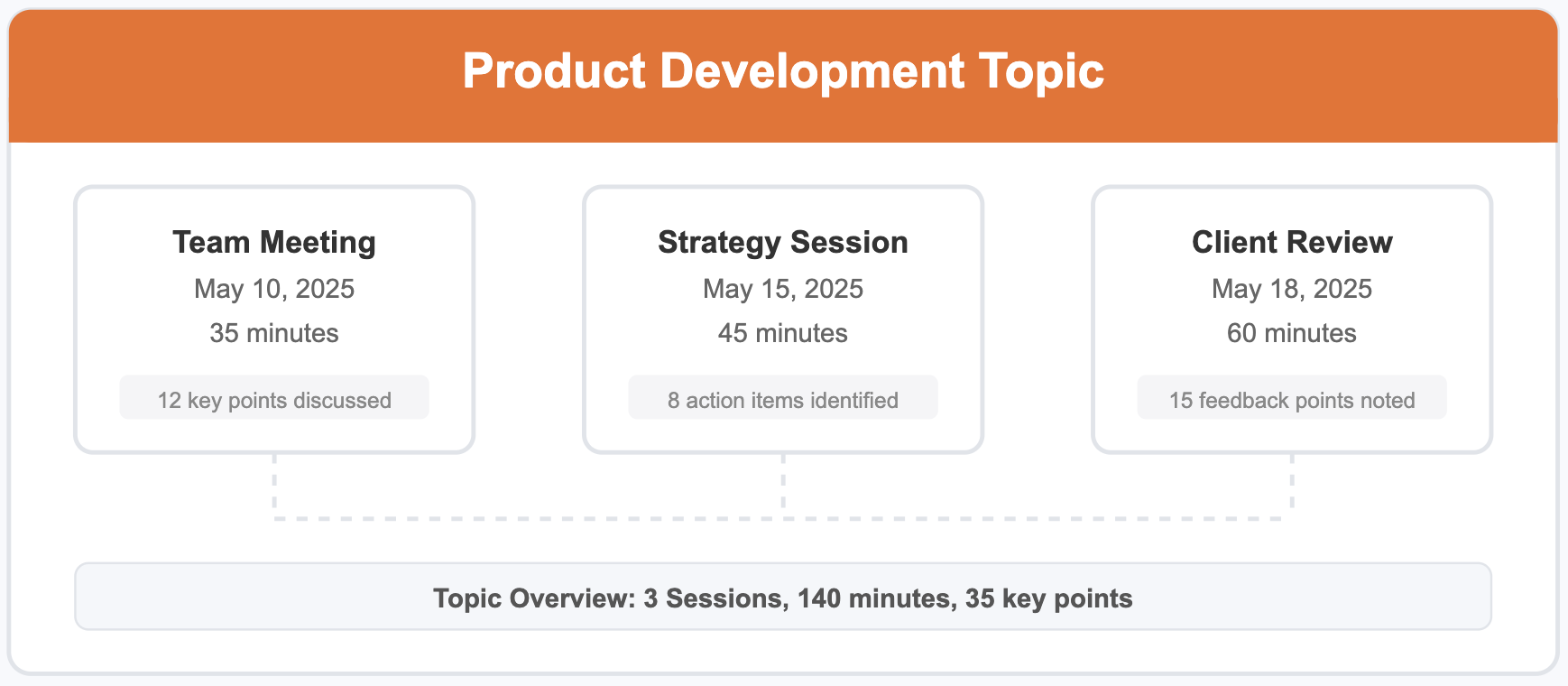
Key Benefits of Using Topics
-
Organize Your Work: Keep related sessions together for easier reference and retrieval
-
Enhanced Context: Hedy can access information from all sessions within a topic to provide more comprehensive insights, when the topic is set to Build on each other (the default)
-
Collective Intelligence: Get answers based on the combined knowledge from all topic sessions
-
Continuous Learning: Hedy develops a deeper understanding of ongoing projects or recurring meetings
-
Simplified Navigation: Quickly find relevant sessions without searching through your entire history
Getting Started with Topics
Creating a New Topic
-
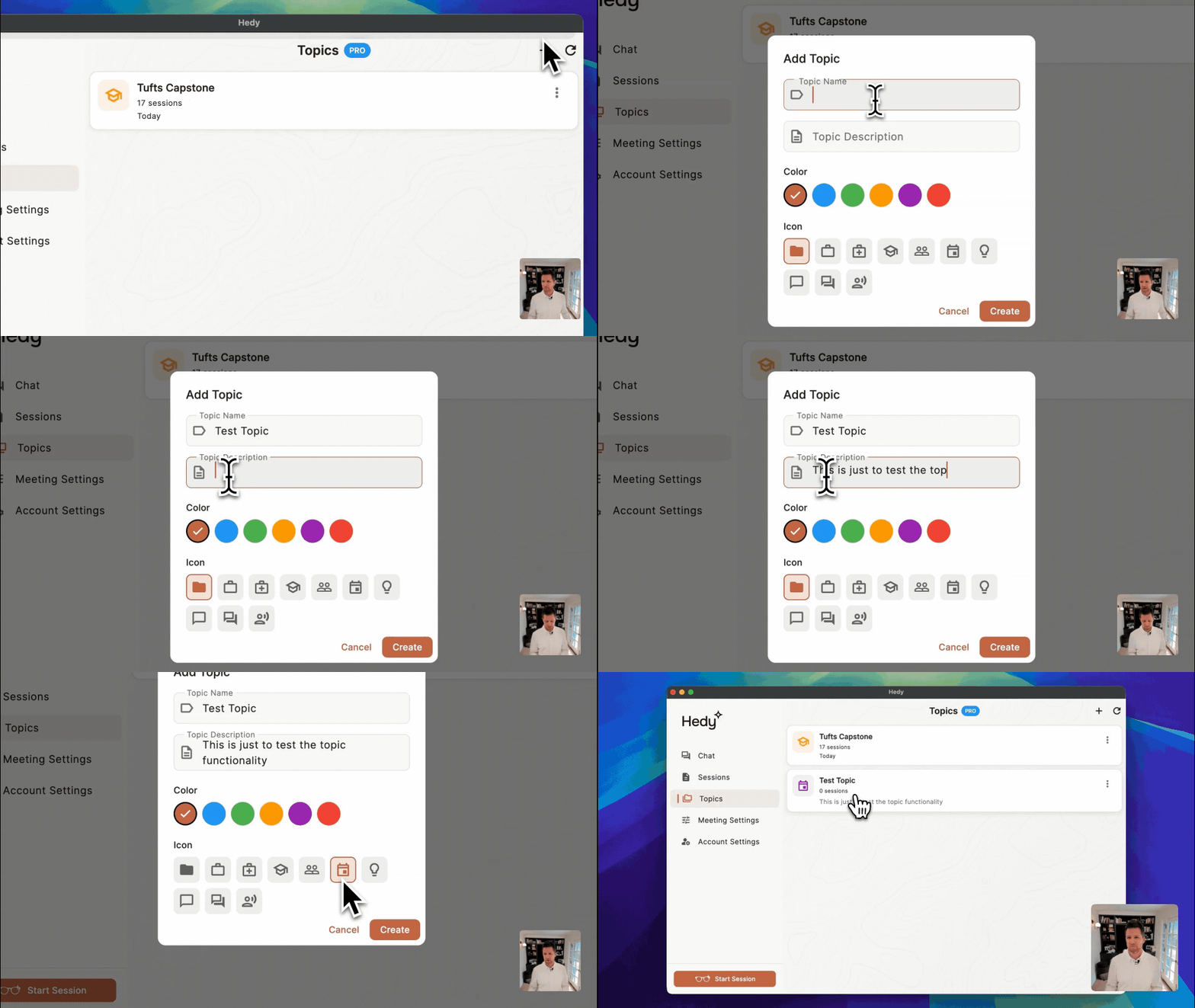
Navigate to the Topics section in your Hedy app
-
Tap Create new topic or the + button
-
Fill in the following details:
-
Name: Give your topic a clear, descriptive name
-
Color: Choose a color to help visually identify your topic
-
Icon: Select an icon that represents the topic’s theme
-
You can add a topic description later in the topic’s Settings tab. While a topic has no description, the field stays hidden behind an Add description link under the name.
To search for a topic icon when creating or editing a topic, expand the icon choices first. The search field appears above the expanded list. Clearing the search leaves the list open. Emoji choices work as before.
Pro Tip: Create topics for ongoing projects, regular meeting series, classes, or any group of related conversations you want Hedy to remember collectively.
On Hedy Team? To share a topic with your team, turn on Team Topic in the same create dialog before you click Create. See Team Topics for who can see it and what is shared.
Create a topic from a session
- Open the session and open its Topic menu.
- Choose Create new topic from this session. Hedy drafts a topic name and context from the session using your selected AI: Cloud AI, Local AI, or Apple Private Cloud Compute on supported iPhones.
- Review and edit the name and context, then create the topic. Hedy files the session in the new topic.
This counts toward the Free plan’s limit of one topic. With AI Processing set to Off, Hedy opens the form without an AI draft so you can enter the details yourself. For recurring calendar meetings, the name may already be filled in from the meeting title.
Adding Sessions to a Topic
Choose a topic when you start a session, assign an existing session, or change the topic on your current session’s card in the Sessions list.
When starting a new session:
-
Tap the Hedy button to start a new session
-
In the session setup screen, select a topic from the dropdown menu
-
Start your session as normal
Adding existing sessions to a topic:
-
Go to the Sessions section
-
Open the session you want to add
-
Select Assign to Topic
-
Choose the topic from the list
You can also assign topics with swipe gestures or in bulk from the session list. See managing your Hedy sessions.
Topic Suggestions After a Session
When a session that isn’t in a topic finishes and its recap is ready, Hedy may suggest one of your topics for it. In the session details, an Add to [topic name]? chip appears next to the topic picker. Tap the check mark to add the session, or the X to dismiss the suggestion. The session’s card in the Sessions list shows the same suggestion. Tap it to add the session, dismiss the suggestion, or pick Choose another topic….
Hedy suggests at most one topic per session, and only from topics you own (not Team topics). Some sessions get no suggestion. The Hedy app on your phone or computer makes the suggestion when it finishes a session. On the web, you see the suggestions that synced from there.
Recurring Calendar Meetings
If your calendar is connected and Share meeting details with Hedy is on, Hedy files sessions from a recurring meeting for you:
-
Automatic filing: A session you start for a recurring meeting goes into the topic where you filed the last session of that meeting.
-
Catch-up offer: When you add a session from a recurring meeting to a topic yourself, Hedy checks for earlier sessions of the same meeting that aren’t in a topic yet. If it finds any, the confirmation asks, for example, Also move 2 earlier sessions from this meeting? Tap Move to file them too.
-
Prefilled names: When you create a new topic without an AI draft while filing a session, the name is filled in from the meeting’s title, so you can save it as is or edit it.
Automatic filing and the catch-up offer work in the iPhone, Android, Mac, and Windows apps, not on the web.
Managing Your Topics
To view and manage your topics:
-
Go to the Topics section in the main navigation
-
You’ll see a list of all your topics
-
Tap on any topic to view its details page
On the topic details page, you can:
-
View an overview of the topic
-
See all sessions within the topic
-
Access the topic-specific chat
-
Edit topic details or delete the topic
You can also share a topic so others can view its sessions.
Using Topics for Enhanced Insights
Asking Questions Across Multiple Sessions
One of the most powerful features of Topics is the ability to ask questions that draw information from multiple sessions. During an active session that belongs to a topic, Hedy can reference information from all other sessions within that topic when the topic is set to Build on each other (the default).
For example, you could ask:
-
“What dates were we looking at for the final round of meetings?”
-
“What decisions did we make about the marketing budget?”
-
“Who has been part of these discussions so far?”
Hedy will search across all sessions in the topic to provide comprehensive answers. If you need Hedy to use the exact wording of a reference document, add the document to the topic’s files (see Topic Files below).
Using the Topic Overview
The Topic Overview provides a summary of all sessions within the topic, including:
-
Key themes across all sessions
-
Important decisions that have been made
-
Action items that have been identified
-
A timeline of discussions
This gives you a high-level understanding of the topic without having to review each session individually.
Topic-Specific Chat
Each topic has its own dedicated chat interface where you can ask questions about any session within the topic. This persistent chat allows you to query the collective knowledge of all sessions even when you’re not in an active session.
Topic-specific chat works for any topic you own, including the free topic. Pro accounts can also chat across all of their topics at once, drawing on the combined knowledge of every session.
Topic Insights
When you add sessions to a topic, Hedy automatically generates Topic Insights that analyze patterns across all related conversations:
What Topic Insights Include:
A short summary at the top, followed by these sections:
-
Goals & Progress: Where the goals discussed in the sessions stand
-
Accountability & Commitments: Commitments made in the sessions and their follow-up
-
Breakthroughs & Insights: Key realizations from the sessions
-
Obstacles: What is getting in the way
-
Growth Actions & Next Steps: What to work on next
Topic Insights update automatically when you add new sessions to a topic.
Automatic Prep Notes
Every meeting that’s part of a topic set to Build on each other starts with automatic prep notes. No action required. They appear the moment you begin your session.
Prep notes appear once the topic has Topic Insights, which Hedy generates shortly after sessions are added.
Your instant briefing includes:
-
Outstanding commitments from previous meetings
-
Questions you noted to ask
-
Topics requiring follow-up
-
Critical context from your last conversation
Prep Notes work for sessions in any topic you own that is set to Build on each other, including your free topic.
Topic Context
You can add custom context and instructions to any topic, and they’ll automatically apply to every session within that topic. Topic context works alongside the per-session custom contexts you can set in Settings. Topic context and files apply to every session in the topic, whether you set its sessions to Build on each other or Stand on their own.
How to set Topic Context:
-
Open a topic
-
Go to its Settings tab
-
Add your custom context in AI context & instructions. It saves on its own
Perfect for:
-
Client projects: Add client-specific terminology, goals, and background
-
Team projects: Maintain consistent project context without repeating it for each session
-
Educational courses: Set learning objectives and key concepts that persist throughout a semester
-
Job searches and sales pipelines: Keep the job description or the deal notes in the topic while your resume or product pitch stays in your reusable session context; see the worked examples for job interviews and sales calls
Topic Files
You can also add documents and photos to a topic you own. Open the topic, go to its Settings tab, and add them in the Files section. Hedy uses them in every session filed under the topic and in the topic’s chat. Adding files is part of Hedy Pro. See use files and photos as context for file types and details.
Choose Whether Sessions Build on Each Other
Every topic has a setting called How should sessions in this Topic work together?. You pick an option when you create the topic and can change it any time in the topic’s Settings tab:
-
Build on each other (the default): Hedy picks up where the last session left off. Live suggestions, session chat, recaps and detailed notes can use notes from the topic’s other sessions.
-
Stand on their own: Hedy treats each session by itself and doesn’t bring in notes from the topic’s other sessions. Pick this when a topic holds unrelated conversations, such as intake calls with different clients.
Topic chat and Topic Insights still work across all the topic’s sessions with either option.
Your choice applies to the next suggestion, answer, recap or notes Hedy starts writing. An answer that is already appearing finishes as it started. If Hedy is finishing a recap or notes at that moment, it writes it again with your new choice. Text Hedy already wrote in a session before you switched can still be used later in that session.
Each of your devices follows the change once it has synced it and runs Hedy 3.17 or later. With Cloud Sync off, your choice stays on that device.
Practical Examples
Here are some practical ways to use Topics in your Hedy experience:
Project-Based Topics
Create a topic for each major project you’re working on. Include all project meetings, planning sessions, and review discussions. With this structure, Hedy can help you track progress, recall decisions, and maintain continuity throughout the project lifecycle.
Client-Specific Topics
For professionals who work with multiple clients, create a topic for each client. This helps Hedy understand the specific needs, preferences, and history of each client relationship, providing more personalized insights during client meetings.
Course or Class Topics
For students, create a topic for each course you’re taking. Add all lectures, study sessions, and discussion groups to the appropriate topic. Hedy will help you connect concepts across different classes and build a comprehensive understanding of the subject matter.
How to use Hedy for classes and courses walks through the full setup, including which device to use for an online class.
Frequently Asked Questions
Is the Topics feature available on all plans?
Yes. Every plan includes Topics. Free accounts can create one topic and use all of its features: session assignment, topic chat, topic overview, topic context, and the choice of whether its sessions build on each other. Pro accounts get unlimited topics and can chat across all of them at once.
How many topics can I create?
Free accounts can create one topic. Pro accounts have no limit. If you create a topic on the free plan and later want more, you’ll see an upgrade prompt when you tap Create new topic. Your existing topic and its sessions are never affected.
What happens to my topics if I downgrade from Pro?
Nothing is deleted. You keep full access to every topic you already created: view, edit, chat, assign sessions, and topic overviews all continue to work. You’re only prevented from creating additional topics until you upgrade again.
Can I move a session from one topic to another?
Yes, you can reassign a session to a different topic from the session details screen.
Best Practices
-
Be Specific: Create focused topics rather than overly broad ones
-
Use Consistent Naming: Develop a naming convention for your topics to make them easier to identify
-
Regular Review: Periodically review your topics to ensure they’re still relevant and organized efficiently
-
Topic Description: Add descriptions to your topics to help you remember their purpose
-
Color Coding: Use colors strategically to visually categorize different types of topics