Complete Guide to Audio and Video Transcription: Tools, Tips, and AI Solutions
How to transcribe audio and video files to text: importing recordings and online videos, identifying who said what, exporting to Word or PDF, and keeping transcription on your device.

Audio and video content is everywhere. From business meetings and podcasts to instructional videos and interviews, spoken content has become a dominant form of communication. But what happens when you need to reference, search, or share this information in text form? This is where transcription becomes essential, transforming spoken words into written text that can be easily searched, edited, and repurposed.
Hedy AI handles that job on your own device. Instead of typing it out yourself or paying a per-minute service, you get transcription of live conversations and existing files, plus summaries, notes, and a chat you can ask questions about what was said.
Understanding Audio and Video Transcription
Transcription has evolved from a specialized service to an essential productivity tool. Beyond making content accessible to those with hearing impairments, transcripts make your audio and video content:
- Searchable: Instantly find key moments without scrubbing through recordings
- Repurposable: Transform recordings into blog posts, articles, and social media content
- Analyzable: Extract insights, patterns, and action items from conversations
- Shareable: Provide colleagues with text references instead of time-stamped video links
Meetings alone produce a lot of speech. A 2026 Reclaim.ai survey of Google Cloud Next attendees put their average at 15.8 hours of meetings a week. Without a transcript, most of what gets said in those hours is hard to find again.
Audio Transcription Solutions
How to Transcribe an Audio File to Text?
Transcribing audio files has traditionally involved either tedious manual typing or expensive transcription services. With Hedy, the process looks like this:
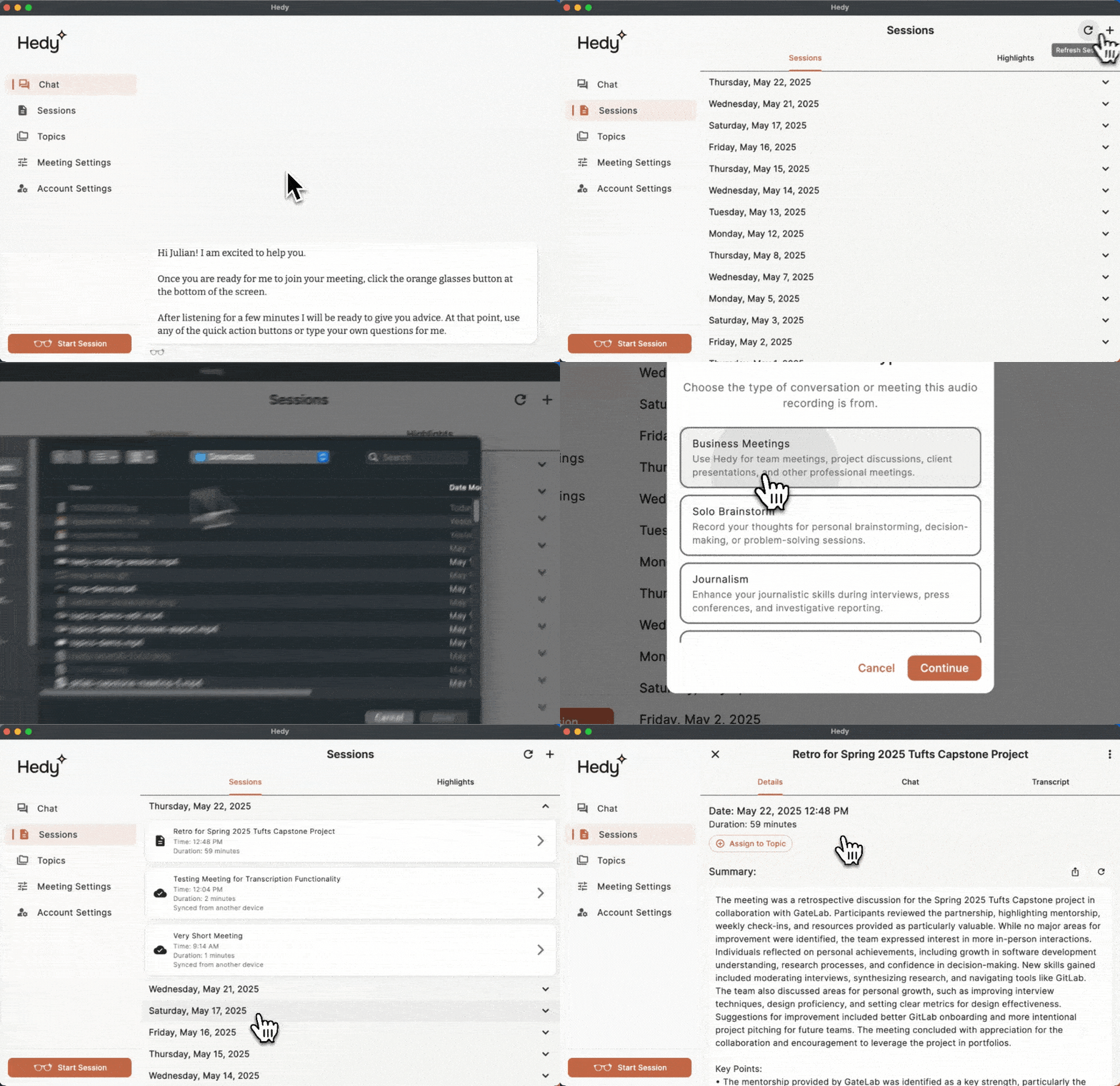
- Open Hedy on your phone or computer and go to the Sessions tab
- On desktop, click Import in the top right. On mobile, tap the menu button (⋮) and choose Import Audio or Video File
- Pick your file and choose a session type
- Hedy processes the file on your device, typically in less time than the audio’s actual length
- Edit or clean up the transcript as needed with Hedy’s built-in editing tools
You can also share a file straight to Hedy from another app (Voice Memos, Files, and so on), or drag it onto the Hedy window on Mac or Windows. The import guide covers all three methods. File import is a Pro feature and works in the native apps, not the web version.
Is There a Program to Transcribe Audio Recordings?
The market offers numerous transcription programs, ranging from basic dictation software to specialized transcription tools. What sets Hedy AI apart is its unique approach that combines:
- Speed: Transcription happens faster than real-time playback
- Privacy: Speech recognition runs on your device by default, with Whisper or NVIDIA’s Nemotron engine. If you prefer a cloud engine, Hedy also works with Deepgram, OpenAI, or xAI using your own API key
- Intelligence: Goes beyond basic transcription with summaries and insights
- Affordability: Unlimited transcription included with Hedy Pro subscription
- Versatility: Handles common audio formats (MP3, WAV, M4A, AAC, OGG, OPUS, FLAC, AMR, WEBA) and understands 30+ languages
Many transcription services charge per minute. Hedy Pro includes unlimited transcription in a flat subscription, which tends to cost less if you transcribe regularly. The speech recognition guide explains the trade-offs between engines.
Video Transcription Made Simple
Is There a Tool to Transcribe a Video?
Video transcription brings its own problems, from handling multiple speakers to processing background audio. Some dedicated video transcription services also require uploading the file to their servers, cap file sizes, or charge more for video.
Hedy approaches video transcription differently:
- Local Processing: Hedy extracts the audio and transcribes it on your device. The video file stays on the device you imported it on and isn’t uploaded to Hedy’s cloud
- Format Flexibility: Works with MP4, MOV, AVI, MKV, WEBM, and 3GP. On Windows, convert WEBM and MKV to MP4 first
- Online Videos: Paste a link from YouTube, Vimeo, TikTok, Loom, and 20+ other platforms and Hedy imports the audio for you
- Speaker Separation: With the Nemotron engine, the transcript shows who spoke when, and by name where Hedy can tell (more on that below)
“What makes Hedy unique is that it’s not just a transcription tool—it understands context,” explains Julian Pscheid, founder of Hedy AI. “It can understand technical terminology and even summarize the key points automatically.”
How Do I Transcribe an Already Recorded Video?
Transcribing existing video recordings with Hedy AI follows a simple workflow:
- In the Sessions tab, click Import (desktop) or tap the menu button (⋮) (mobile), or drag the file onto the Hedy window on Mac or Windows
- Select the video file from your device storage
- Choose a session type. Hedy extracts the audio and begins processing
- Once complete, you’ll have the full transcript. Sessions transcribed with Nemotron also show when each speaker turn started
- Use Hedy’s clean-up feature to make the transcript easier to read
- Copy the transcript, or download it along with your summary and notes (see exporting below)
The process typically takes less time than the video’s duration. Once processed, Hedy also pulls out key moments, topics, and action items from your video content.
Desktop and Mobile Transcription
How Do I Transcribe an Audio File on My Computer?
With Hedy AI’s native desktop applications for macOS and Windows, transcribing audio files on your computer is seamless:
- Download and install Hedy for Mac or Windows
- Launch the application and sign in to your account
- Click Import in the Sessions tab, or drag the file onto the app window
- The desktop app uses your computer’s processing power for faster transcription
The desktop experience offers several advantages over mobile transcription, including larger workspace for editing, and the ability to use system audio for transcribing online content directly from your browser.
With Cloud Sync on, transcripts sync between your desktop and mobile devices, so you can start a transcription on one device and work with the results on another. The imported audio or video file itself stays on the device you imported it on.
Automatic Transcription Technology
Is There a Way to Automatically Transcribe a Video?
Automatic video transcription has made remarkable advances thanks to breakthroughs in artificial intelligence and machine learning. Hedy AI leverages these technologies to offer truly automatic transcription with minimal human intervention.
Beyond simply converting speech to text, Hedy AI’s automatic transcription provides:
- Smart Summaries: AI-generated overviews highlighting key points
- Topic Extraction: Recognition of main themes and subjects
- Action Item Detection: Identification of tasks, deadlines, and commitments
When transcription is complete, you can interact with your content by asking questions like “What decisions were made about the marketing budget?” or “Summarize the main points about the new product launch.”
This conversational approach to transcribed content transforms static recordings into interactive knowledge resources, maximizing the value of your audio and video content.
Speaker Identification and Diarization
A transcript of a conversation is only half useful if you can’t tell who said what. The technical name for sorting that out is speaker diarization: splitting the audio into speakers and marking where each one talks. It’s a separate job from turning speech into words, and a separate job again from knowing anyone’s name. Accuracy is usually measured as diarization error rate (DER), the share of speaking time assigned to the wrong speaker, missed, or wrongly marked as speech. Lower is better.
In Hedy, speaker separation comes from the on-device Nemotron speech engine. It labels speakers live on Apple hardware and adds the labels at the end of the session on Windows and Android. It works on imported files too, as long as Nemotron is the engine selected when you import. Whisper, which is still Hedy’s default, and the cloud speech providers don’t separate speakers, so switch to Nemotron under Settings → Speech & AI if you want them.
On top of the numbered speakers, Hedy now puts real names to the voices. It looks for evidence in the conversation, like someone introducing themselves or being addressed by name, and uses your calendar invite and Topic context to match names to voices. Where there’s no evidence, the speaker stays numbered rather than guessed. The names then carry into the summary, detailed notes, and to-dos. You can rename any speaker from the chips above the transcript, or merge two chips when one person was heard as two, and Hedy never overwrites a name you set.
On supported iPhones and Apple Silicon Macs, Hedy 3.12 adds a second pass after a session ends using NVIDIA’s Nemotron 3 Diarization. It runs on your device, handles overlapping speech, and tracks up to eight speakers. According to NVIDIA, the model ranks first on VoiceArena’s diarization leaderboard with a 14.72% DER, ahead of the next system at 19.3%, and in Argmax’s published benchmark it had the lowest error rate of six systems tested, three of them cloud diarization services. The pass only changes speaker labels. Every word and timestamp stays the same.
Exporting Your Transcript and Notes
Once a file is transcribed, you can take it out of Hedy in the format you need. Open the session and choose Download Summary, Download Detailed Notes, or Download All Data, then pick plain text, Markdown, Word, or PDF. Word and PDF keep headings, lists, and tables, so a summary you send on reads like a document.
Download All Data gathers the recap, detailed notes, session notes, highlights, chat history, and to-dos, but not the transcript. The transcript has its own Download Transcript action and saves as a text file, with the speaker names you’ve set.
To send a session to someone who doesn’t use Hedy, Pro users can publish it as a public link that opens in any browser. You choose which sections it shows and when it expires. The link is unlisted rather than private, so for anything confidential, invite the person by email instead.
Practical Applications and Best Practices
Hedy AI’s transcription capabilities serve diverse professional needs:
- Content Creators: Easily repurpose podcast or video content into blog posts, articles, and social media snippets
- Researchers: Transcribe interviews and focus groups for qualitative analysis
- Journalists: Convert interview recordings into quotable text, with speaker names for attribution
- Business Professionals: Transform meeting recordings into actionable minutes with assigned tasks
- Educators: Make lectures accessible and searchable for students
Getting Started with Hedy AI Transcription
Getting started with Hedy AI’s transcription features is straightforward:
- Download the Hedy AI app from the App Store or Google Play
- Create an account or sign in to your existing account
- For desktop transcription, download the Mac or Windows app
- Upgrade to Hedy Pro for unlimited transcription and file import
- Import your first audio or video file
Hedy’s free plan includes 5 hours of live transcription a month. Hedy Pro ($12.99/month or $99.99/year) adds unlimited transcription, importing existing recordings, and every advanced AI feature. See pricing for the full comparison.
The Future of Audio and Video Transcription
Once the words are right, the useful questions are about who said them, what format you can take them out in, and whether your recordings had to leave your device on the way.
Whether you’re a content creator, business professional, researcher, or simply someone looking to make audio and video more accessible, Hedy covers that whole path, from capture or import to a named, searchable transcript and the notes built on it.
Try Hedy and see how much of your audio and video you can finally search.
Frequently Asked Questions
What is speaker diarization?
Diarization is the step that works out who spoke when in a recording. It splits the audio into speakers and marks where each one is talking, so a transcript reads as a conversation instead of one block of text. It is separate from transcribing the words, and separate from knowing anyone’s name.
Can Hedy tell who is speaking in an imported recording?
Yes, when the file is transcribed with Hedy’s on-device Nemotron speech engine. It separates the speakers, and Hedy puts real names on them where the conversation gives it evidence, such as someone introducing themselves. Speakers it can’t identify stay numbered, and you can name them yourself with a tap. Whisper, the default engine, and the cloud speech providers do not separate speakers.
Can I export a transcript to Word or PDF?
You can save a session’s summary, detailed notes, or a combined export as plain text, Markdown, Word, or PDF. The combined export covers the recap, detailed notes, session notes, highlights, chat history, and to-dos. The transcript itself has its own Download Transcript action and saves as a text file.
Is my audio uploaded when I transcribe a file with Hedy?
No. An imported file is transcribed on your device and stays on the device you imported it on. It is not uploaded to Hedy’s cloud. The AI step that writes summaries runs in the cloud by default, and you can move it on-device with Local AI Processing on capable hardware.
About the author
Julian Pscheid is the founder and CEO of Hedy AI, a real-time AI meeting coach used by tens of thousands of professionals worldwide. He writes about how AI is changing the way people prepare for, capture, and understand important conversations.